
2.4.0
New features
-
Effects over multiple rounds
Effects of events and actions can now be spread over several rounds instead of having them occur completely in a single round.
Each impact can now be opened in a submenu in which it is possible to set whether, in addition to the impact in the playoff round, further impacts should also occur during the simulation.
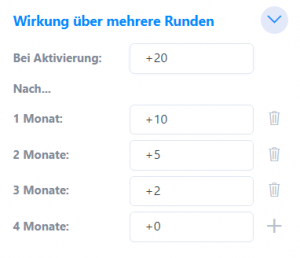
In the simulation, in the affected later rounds, there is an indication of the effect of actions and events that are still active from previous rounds. -
Formulas in impact input fields
Simple to complex formulas can now be entered in impacts to make the effect of individual impacts dependent on the simulation state. Four new capabilities of this field greatly expand the action space:- Variables
Simple variables from the simulation can be used in the formula field, such as the current state of the element or the number of the current round. Example:
We increase the value of the affected element by the number of the current round, so +1 in round 1, +2 in round 2, etc….
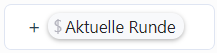
To type a variable, just type “$” in the formula field. - References
In addition to these simple variables, the values of other elements or resources can be used. Example:
Decrease the value of the affected resource “water level” by the value of the element named “water drain”:

To type a reference, simply type “@” into the formula field. - Calculations
The field now no longer needs to have a single value entered in it, it can now have a mathematical expression in it. Example:
We increase the value of an element inversely proportional to its total state, i.e. by +10 if the element has a state of 0 and by +0 if the element has a state of 100.

The mathematical characters +, -, / and * can be used, as well as parentheses to delimit subexpressions. - Functions
Calculations can be used to describe complex relationships. For formulas that go beyond that, which cannot be represented with simple expressions, we have also provided a number of functions that can be used in the formula field. Example:
We want the effect to give the affected element a random value between -4 and +6.

Example 2:
If the state of element A is below 50, decrease the affected element by 10 points. Otherwise, add +10 to the affected element.
 Functions can be selected and entered with the “#” key.
With the introduction of the formula field, the distinction between the unit “point” and “percent” when entering effects has been eliminated. Percentage values can now be entered directly into the formula field when needed.
- Variables
-
Short info about actions and events
In the simulation, events or measures can now be clicked in the left sidebar to display a small popup window with all the effects of the measure in the round. This popup window remains open and can be moved around to quickly compare the effects of multiple measures. -
Hideable and moveable areas
The areas of the software (impact network, variables, network analysis, …) can now be freely arranged in the menu bar. In addition, they can be hidden via the “Visible areas” menu in the settings. -
Duplicate folders
Folders can now be duplicated as a whole. Any user with access to a folder can select the “Duplicate Folder” option from the folder’s context menu, specify the destination and new name, and a copy of the folder is created at this point, including a copy of all the models it contains.
Improvements
- Context menu for model entries in folders
The models in the model overview can now also be deleted, moved or copied directly by right-clicking without having to call up the administration screen. - In the relationship creation mode, all entered values (description, relationship type) are now cached for each relationship, even if the relationship has not yet been created. This “draft data” avoids accidental discarding of entered information.
- Dropdowns are now limited to the height of the current window. If they extend beyond that, they become scrollable.
- Team and Order fields in the Save dialog are now searchable.
- The error messages in the team creation popup are now better formatted.
- Items in the item selection dropdown are now sorted.
- Page menus that refer to a specific item now include a color-coded heading area that contains the item’s title.
- Buttons that were labeled exclusively with an icon now also contain help text that appears when the mouse pointer is held over them.
- The second input field for entering the condition “Round between … and …” must now contain at least the value of the first input field.
- If you try to publish an empty model, you will now get an error message that prevents this.
- The element names in the curve description example now stand out from the rest of the text to make them easier to notice.
- The “(simulation)” hint is now also visible on the Model Manage page, not just in the model entry in the folder.
- Imported models are now opened in a new tab by default.
- In the model list, each model now has a short note about how many times it has been published and shared.
- When a right-click menu is opened, the first entry in it is focused.
- If a letter is typed in a selection list, the search is focused. If the delete key is pressed, the selection list closes.
Bug fixes
- Moving list entries in Firefox works again.
- The password should no longer be asked twice when loading a model was interrupted.
- Team models should also now consistently ask for confirmation before closing.