
Model
#Model overview
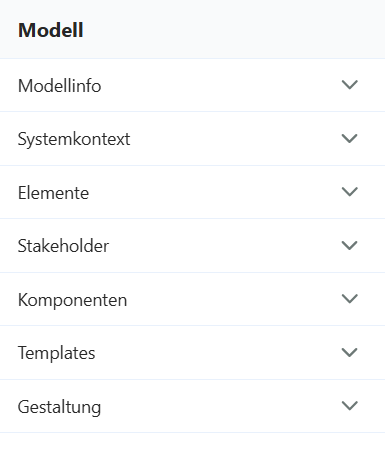
If no element is selected in the network (or after clicking the background of the model), you get to the "Model" menu section.
- Model info
- System context
- Elements
- Stakeholders
- Templates
- Design
#Model info
In the Model info section, you can store information about your model that should be available to everyone using it.
Settings in the Model info section are independent of what you enter in the model management: the description in the model management is never shown inside the model itself, the description in the model info is.
Title
Name your model here. This title is also shown in the browser's title bar (or the simcision app tab).
Description
Add a public description of your model here (project information, contributors, references, …). This description can be read anywhere in the model via the model info pop-up.
#System context
#Central question
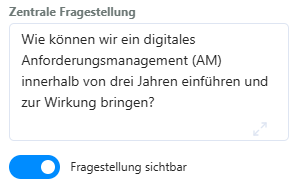
If your model examines a central question, you can store it here. The central question defines the context of your system: What are you examining, which period of time is considered, how broadly is the question framed? Depending on this context, you can decide whether an element is part of your model.
The central question stays valid for the whole project and can be phrased as a question or as a problem statement. Use the toggle to decide whether it is always shown in the model or hidden.
#Time and duration
Time plays a major role in simcision simulations. You should therefore decide early on which "base cycle" your system has. It determines the time unit of the simulation.
There are different strategies for choosing your time unit:
- The fastest relevant change in your system can be the basis of your view. If a change in one factor affects another within a second, the second should be your unit. If a follow-up change only becomes noticeable after a while, you can choose a longer base unit.
- Alternatively, you can start from the points at which you interact with the system. Are we simulating a system in which we can only make decisions every quarter? Then we can simulate quarterly as well.
Either way, the time unit is the basis for the strength of all impacts in your model and should therefore be defined early. (The effect of one factor on another looks different when we look at months rather than years.)
Examples of time units: round, year, week, 5 days, 30 minutes.
You can also set the maximum number of time units of the simulation: either just the planned duration (e.g. 10 years) or a concrete period (e.g. the years 2021 to 2030).
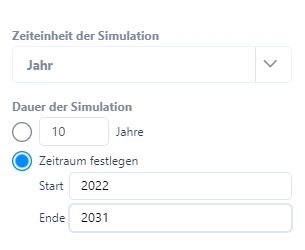
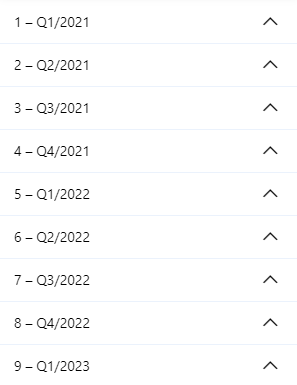
This setting determines the round labels in the simulation section: with a concrete period, every round is labeled with its point in time. With only a duration, the rounds are simply numbered.
#Elements
The "Elements" tab lists all elements of your system.
Elements represent the factors (variables) that are relevant in your system. Every element you create appears here. You can create new elements, delete existing ones and reorder them via drag-and-drop (the order in this menu is used in all selection fields).
#Stakeholders
In this section, you can manage all stakeholders of your model.
Stakeholders are people, groups or organizations that may have an interest in parts of your system or may be affected by it.
Create new stakeholders using the input field or delete existing stakeholders from your model.
Stakeholders exist for documentation purposes only. You can assign elements and actions to individual stakeholders to note that these factors matter to the stakeholder or that the stakeholder has influence on this part of your system.