
Overview
#Create simulation
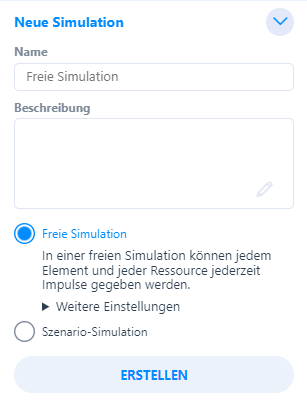
Simulations can be created in the “New simulation” menu. You can give each simulation an individual name and description, but these fields are optional.
Each simulation belongs to one of two simulation types:
- Free simulation
Free simulation is simcision's “experimental mode”. In free simulations, self-definable impulses can be given to the network in each round, which influence the status of elements or resources. You can also set (under “More settings”) how many rounds the simulation should run and whether or not events, actions and self-driven dynamics should be used. - Scenario simulation
Each scenario simulation is permanently linked to a scenario that was created in the “Interventions” area. Self-defined impulses are not possible here. Only the events that are set in the scenario occur in the simulation and only the actions that were selected in the scenario can be used.
The scenario simulation is well suited for testing simulations with fixed framework conditions.
#Manage simulations
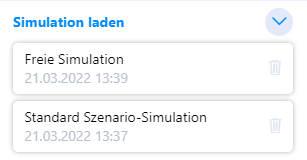
Simulations that have already been created can be managed in the “Load simulation” area.
You can open a simulation by clicking on it; clicking on the recycle bin icon deletes the corresponding simulation.
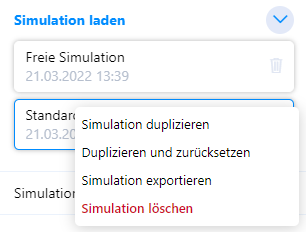
You can call up the corresponding context menu by right-clicking on a simulation.
- Duplicate simulation
The simulation is duplicated with all settings, actions, impulses and events. The duplicate can continue to be simulated independently of the original. - Duplicate and reset
A new simulation is started with the same settings; actions, single impulses and round notes are adopted. - Export simulation
The simulation is exported as a JSON file. This file can be imported again in the “Import simulation” area. - Delete simulation
The simulation is deleted. This step cannot be undone.
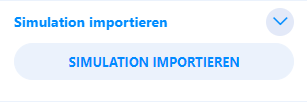
You can re-import exported simulations in the “Import simulation” area.
Please note that simulations can no longer be imported if elements, resources, actions or events belonging to the simulation have been deleted in the meantime.
#Settings and navigation
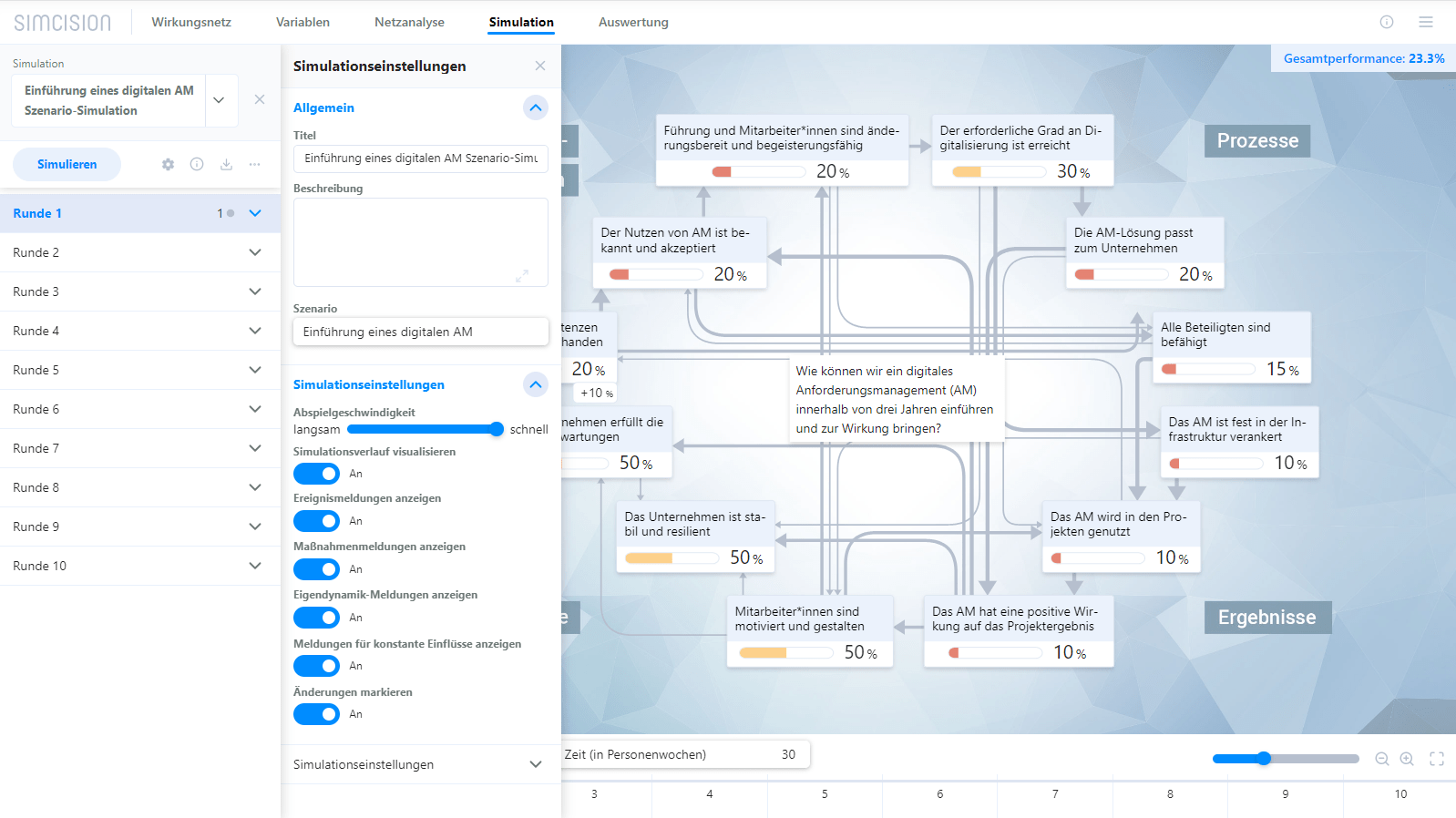
As soon as you have opened a simulation, you will see it in the menu on the left-hand side.
The simulation can be changed or closed in the header area.
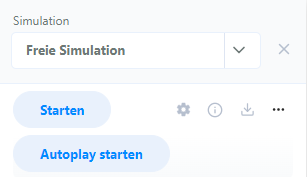
Below this are control buttons for the open simulation.
 or  | Starts the next simulation section |
|---|---|
 | Opening the settings area In the “Settings” area, you can add a title and a description to the simulation. You can also adjust the playback speed of the simulation and show or hide messages that appear during the simulation. You can continue to edit these adjustments during the simulation and change them at any time. The collapsed “Simulation Settings” section at the end contains expert settings: “Use manual impulses” and “Fixed random seed” New in 3.13, with the random seed of the simulation. |
 | Open info window The simulation info window gives you an overview of all the simulation data: Simulation information - Information on whether the simulation has been completed and how many rounds have been played. Scenario - information about the selected simulation scenario Actions - Overview of all actions taken, their timing, their costs and the effects on the individual elements Events - Overview of all events that have occurred and their effects You can export this data at any point in the simulation in the form of a text file. |
 | Download simulation Downloaded simulations can be imported as long as the model has the same structure as the one in which the simulation took place. |
 | Open/close autoplay area |
 | Start autoplay The “Start autoplay” button is used to run through all rounds of the simulation, including the previously defined actions and events, until the simulation has run through or reaches a termination criterion. Autoplay can be stopped at any time using the “Stop autoplay” button. |
More about the random seed: Random numbers and seed.